Weaf HR

Employees

The employee record is the centre of the system.

The employee record is the centre of the system. Leave, attendance, payroll, appraisals, contracts and assets all point back to it, which is why this chapter sits before all of them.

Employees

The heart of the system: one record per person employed, holding their personal details, job placement, documents and salary. Almost every other module refers back to an employee record, so this is usually where a new implementation spends most of its setup time.
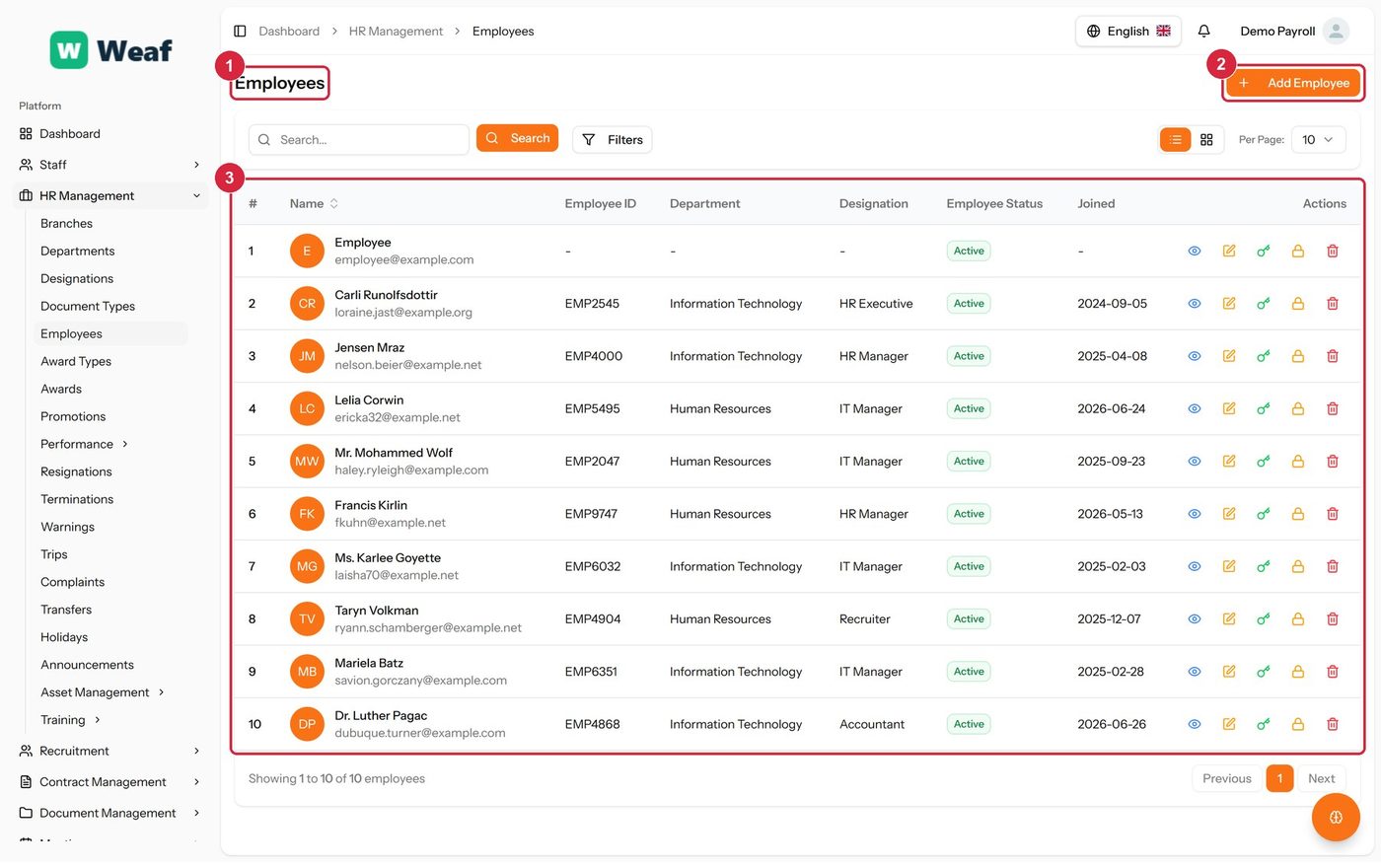
The Employees page
The Employees page
  • 1 page title
  • 2 primary action
  • 3 records table
Columns
  • #
  • Name
  • Employee ID
  • Department
  • Designation
  • Employee Status
  • Joined
  • Actions
Actions on this page
  • Add Employee
  1. Make sure the branch, department and designation this person will belong to already exist. The form offers them as choices; it does not create them.
  2. Choose Add Employee. The form opens on its own page.
  3. Complete the identity section: full name, employee code, email, password, phone, date of birth and date of joining.
  4. Complete the address and emergency contact sections.
  5. Complete the bank section — bank name, account holder, account number, BIC/SWIFT and branch — which payroll needs before this person can be paid.
  6. Enter the base salary, then select the branch, department, designation and, if you use them, the shift and attendance policy.
  7. Save. The employee appears in the list and can now be referenced everywhere else in the system.
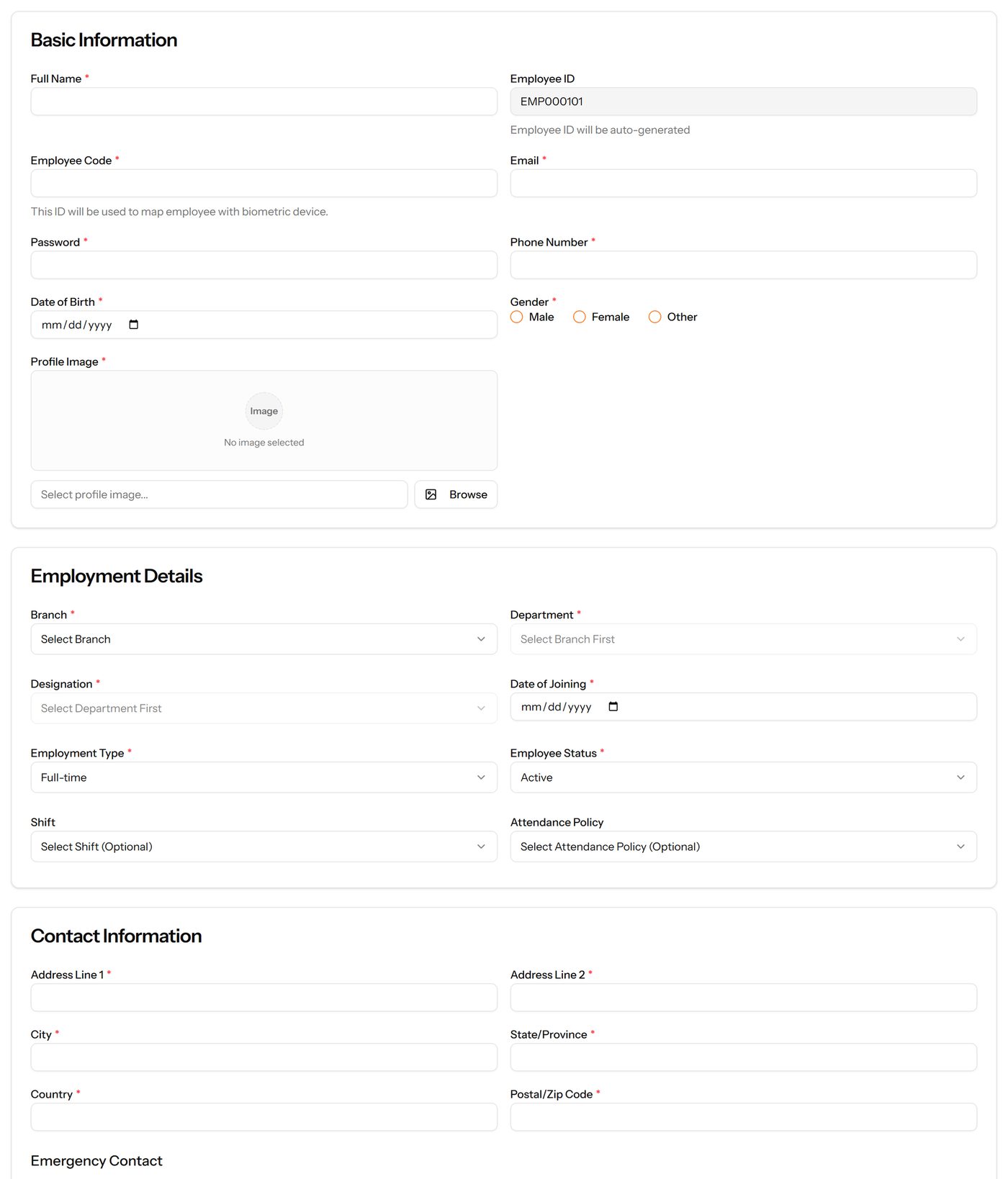
The Add Employee form

Common questions about employees

How do I add an employee in Weaf HR?

The heart of the system: one record per person employed, holding their personal details, job placement, documents and salary. Almost every other module refers back to an employee record, so this is usually where a new implementation spends most of its setup time.

  1. Make sure the branch, department and designation this person will belong to already exist. The form offers them as choices; it does not create them.
  2. Choose Add Employee. The form opens on its own page.
  3. Complete the identity section: full name, employee code, email, password, phone, date of birth and date of joining.
  4. Complete the address and emergency contact sections.
  5. Complete the bank section — bank name, account holder, account number, BIC/SWIFT and branch — which payroll needs before this person can be paid.
  6. Enter the base salary, then select the branch, department, designation and, if you use them, the shift and attendance policy.
  7. Save. The employee appears in the list and can now be referenced everywhere else in the system.

See all questions →