Weaf HR

Performance

Appraisal is made repeatable by defining what you measure before you measure it: categories group the indicators, indicators carry units and targets, and cycles set the rhythm.

Appraisal is made repeatable by defining what you measure before you measure it: categories group the indicators, indicators carry units and targets, and cycles set the rhythm. Goals and reviews are then recorded against individual employees.

Pages in this chapter
  • Indicator Categories
  • Indicators
  • Goal Types
  • Employee Goals
  • Review Cycles
  • Employee Reviews

Indicator Categories

A reference list. Entries created here become the options offered when you create a performance indicator. Setting these up once, before the records that use them, saves correcting the same choice repeatedly later.
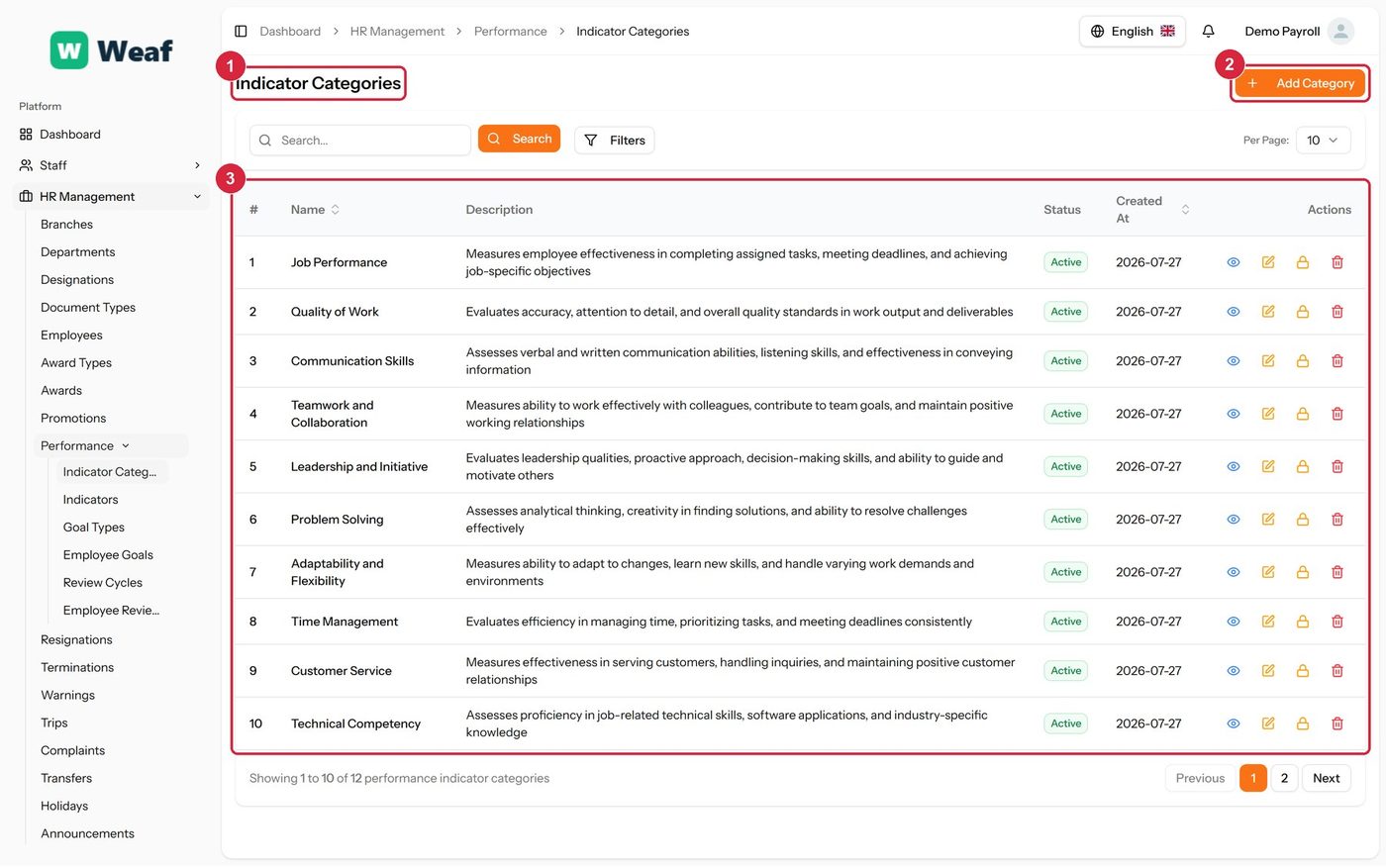
The Indicator Categories page
  • 1 page title
  • 2 primary action
  • 3 records table
Columns
  • #
  • Name
  • Description
  • Status
  • Created At
  • Actions
Actions on this page
  • Add Category
  1. Choose Add Category at the top right. The form opens in a panel.
  2. Complete the required fields: Category Name.
  3. Fill in anything else that applies: Description.
  4. Choose Save. The new record appears in the list.
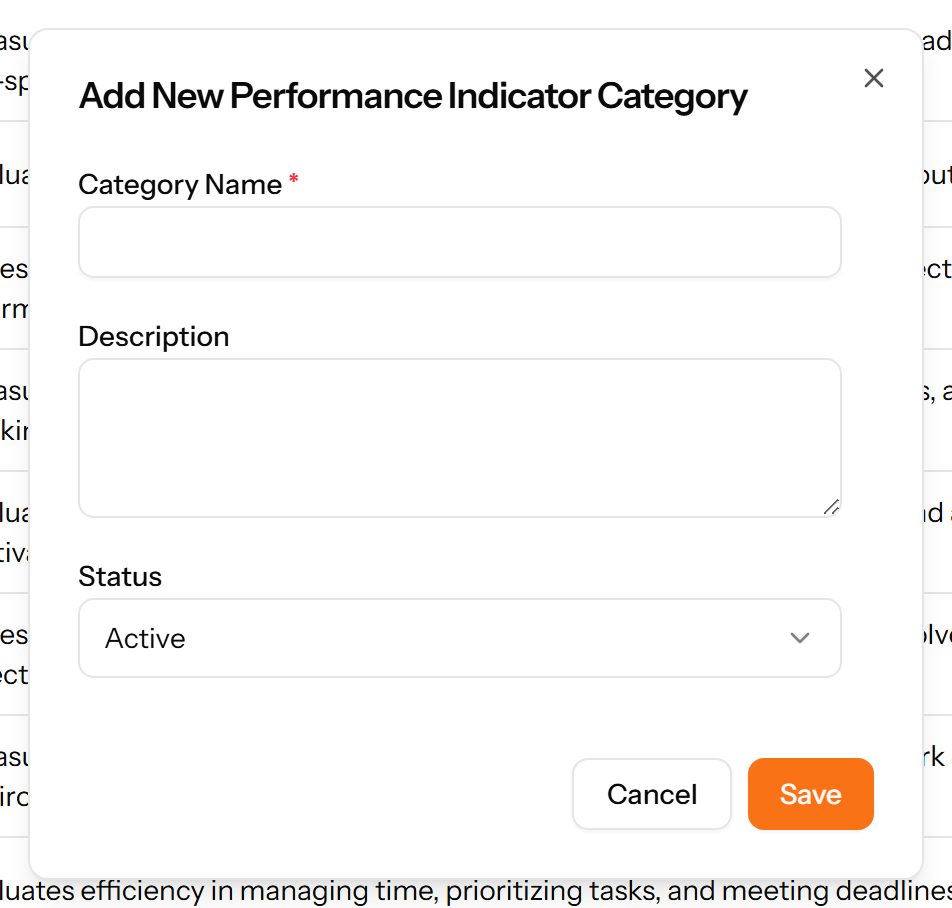
The Add Category form

Indicators

The things you measure. Each indicator belongs to a category and carries a measurement unit and a target value, which is what makes a review scoreable rather than a matter of opinion.
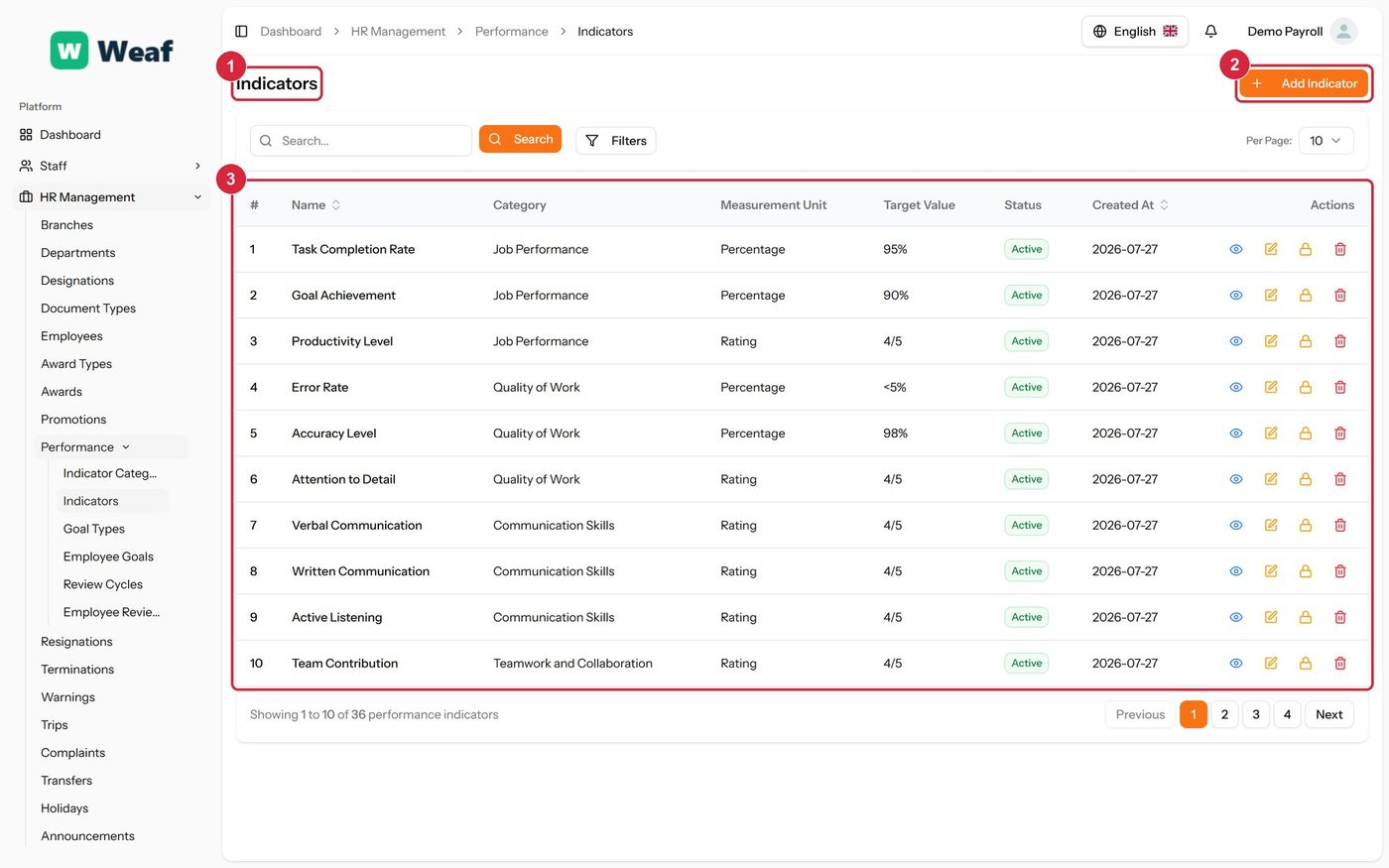
The Indicators page
The Indicators page
  • 1 page title
  • 2 primary action
  • 3 records table
Columns
  • #
  • Name
  • Category
  • Measurement Unit
  • Target Value
  • Status
  • Created At
  • Actions
Actions on this page
  • Add Indicator
  1. Choose Add Indicator at the top right. The form opens in a panel.
  2. Complete the required fields: Indicator Name.
  3. Fill in anything else that applies: Description, Measurement Unit, Target Value.
  4. Make the selections the form asks for: Category.
  5. Choose Save. The new record appears in the list.
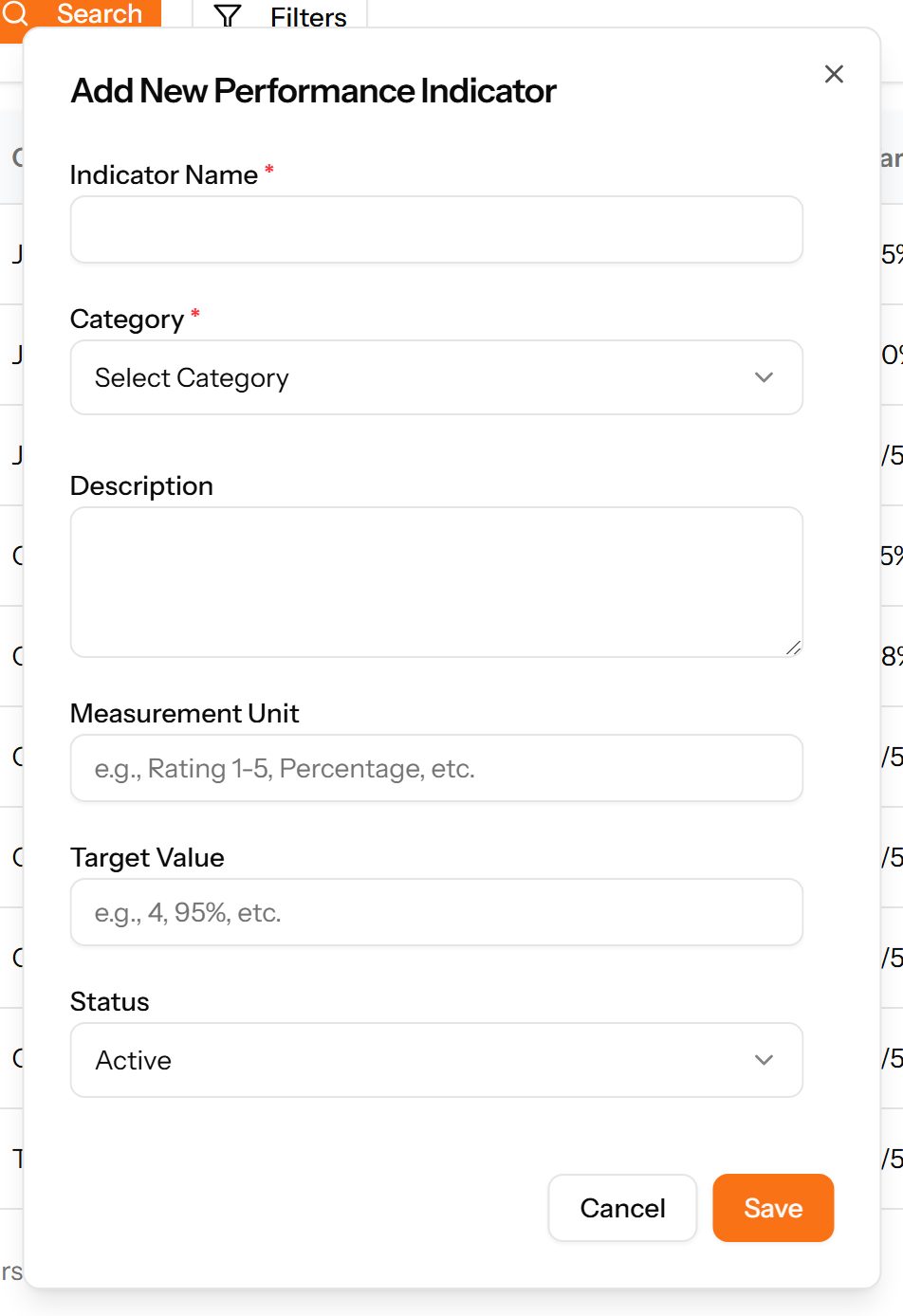
The Add Indicator form

Goal Types

A reference list. Entries created here become the options offered when you create an employee goal. Setting these up once, before the records that use them, saves correcting the same choice repeatedly later.
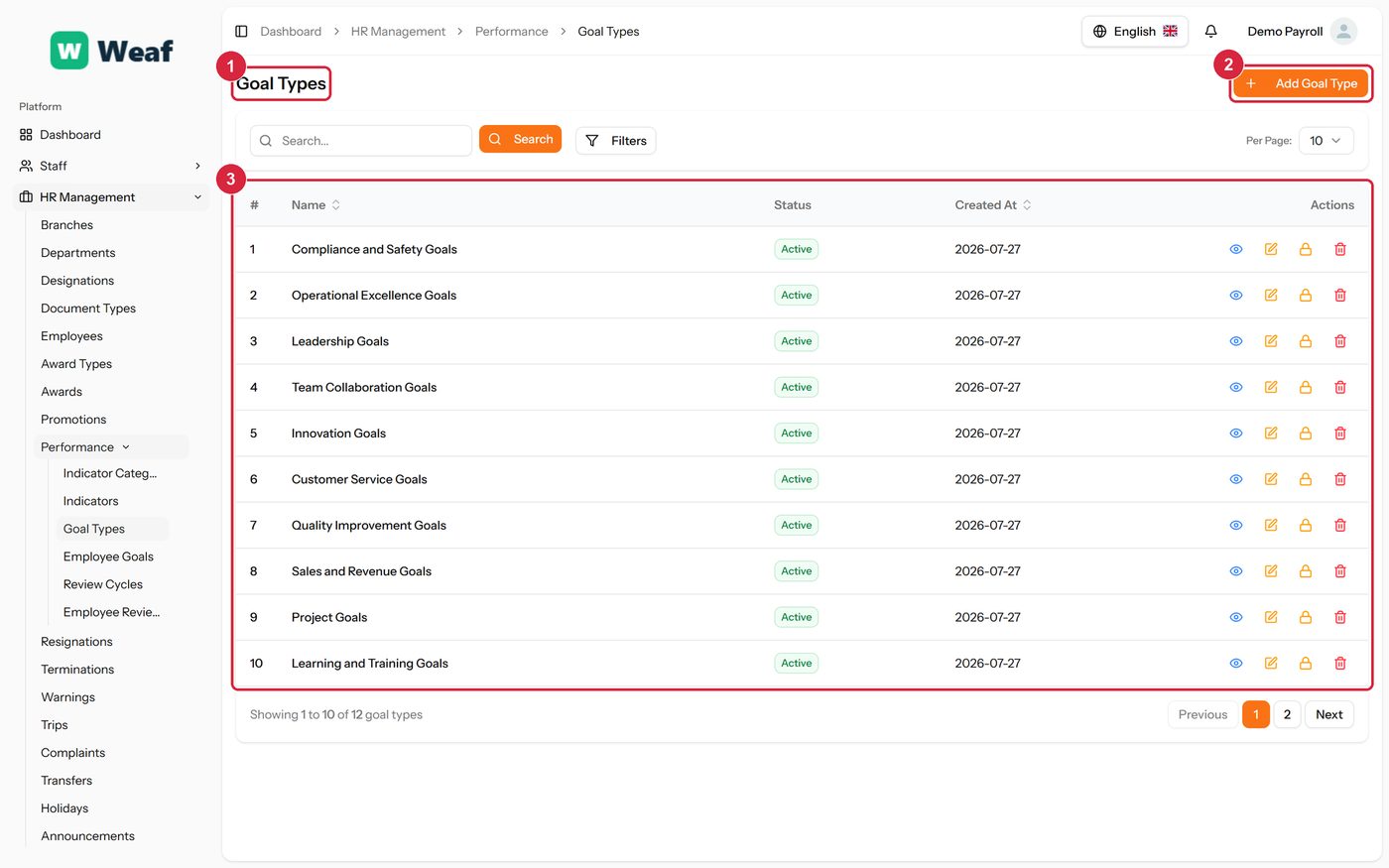
The Goal Types page
The Goal Types page
  • 1 page title
  • 2 primary action
  • 3 records table
Columns
  • #
  • Name
  • Status
  • Created At
  • Actions
Actions on this page
  • Add Goal Type
  1. Choose Add Goal Type at the top right. The form opens in a panel.
  2. Complete the required fields: Goal Type Name.
  3. Fill in anything else that applies: Description.
  4. Choose Save. The new record appears in the list.
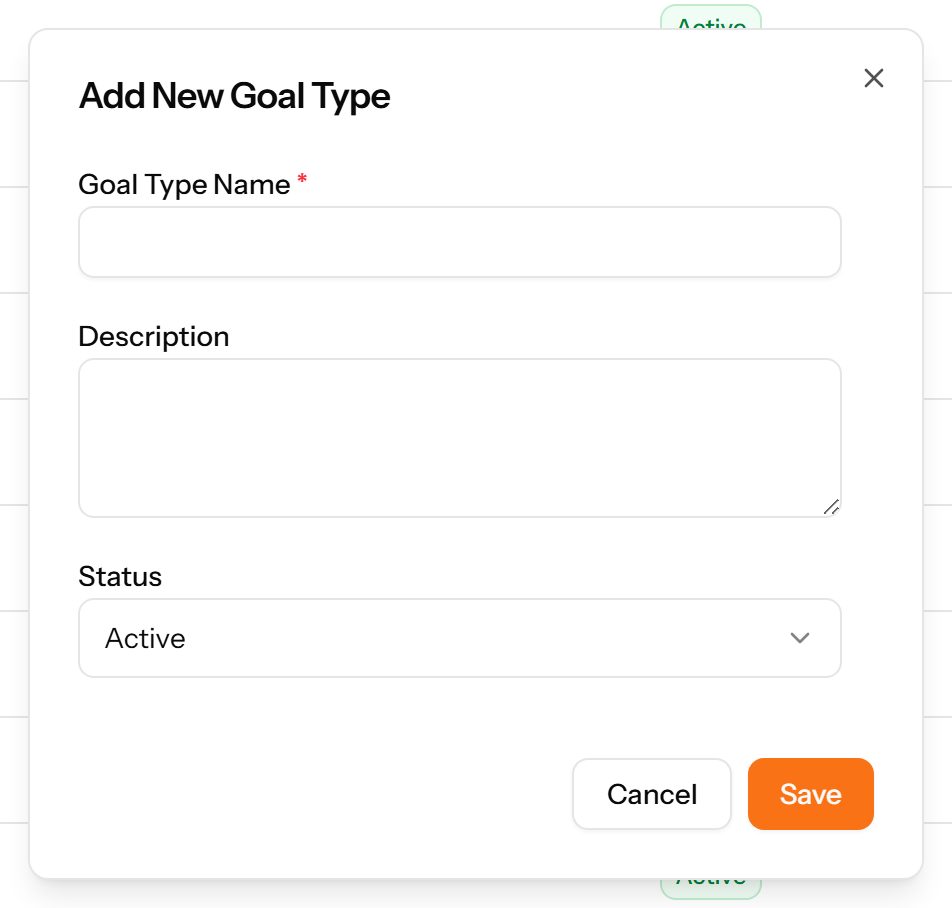
The Add Goal Type form

Employee Goals

Goals set for a named employee, each with a type, a period and a progress figure that is updated as the goal advances.
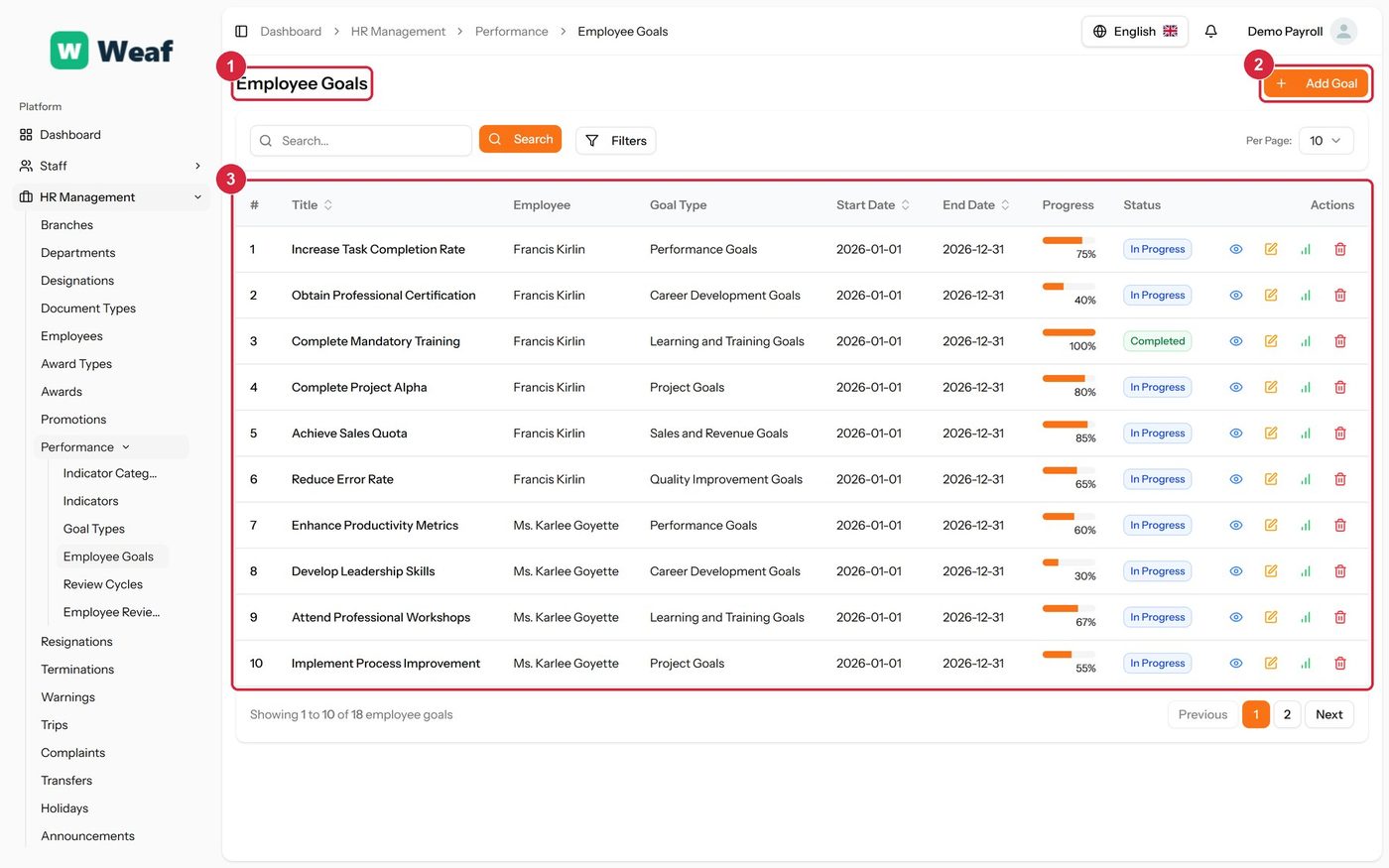
The Employee Goals page
  • 1 page title
  • 2 primary action
  • 3 records table
Columns
  • #
  • Title
  • Employee
  • Goal Type
  • Start Date
  • End Date
  • Progress
  • Status
  • Actions
Actions on this page
  • Add Goal
  1. Choose Add Goal at the top right. The form opens in a panel.
  2. Complete the required fields: Goal Title, Start Date, End Date.
  3. Fill in anything else that applies: Description, Target, Progress (%).
  4. Make the selections the form asks for: Employee, Goal Type.
  5. Choose Save. The new record appears in the list.
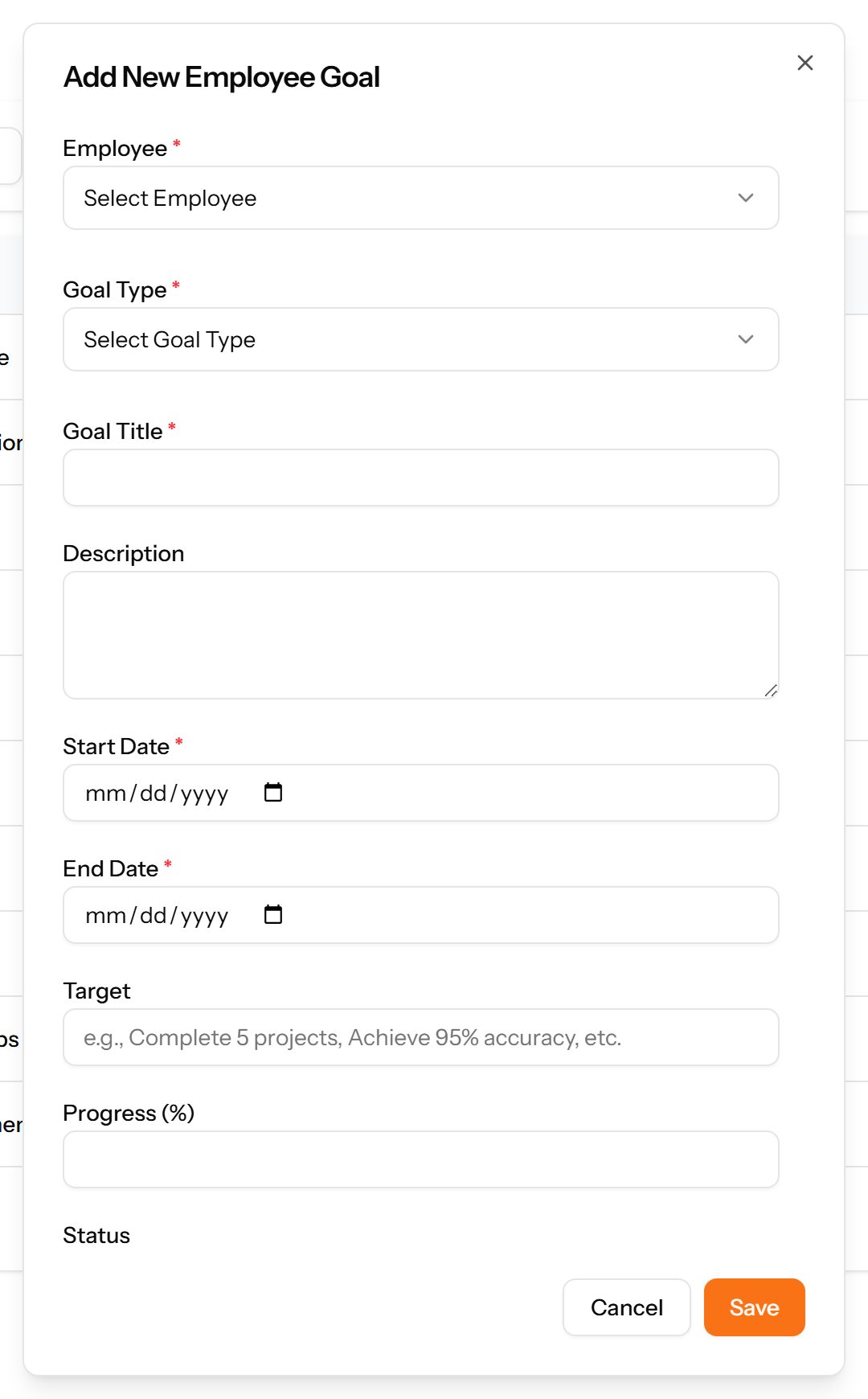
The Add Goal form
The Add Goal form

Review Cycles

The rhythm of appraisal — quarterly, half-yearly, annual. A cycle is created once and reused for every review that belongs to it.
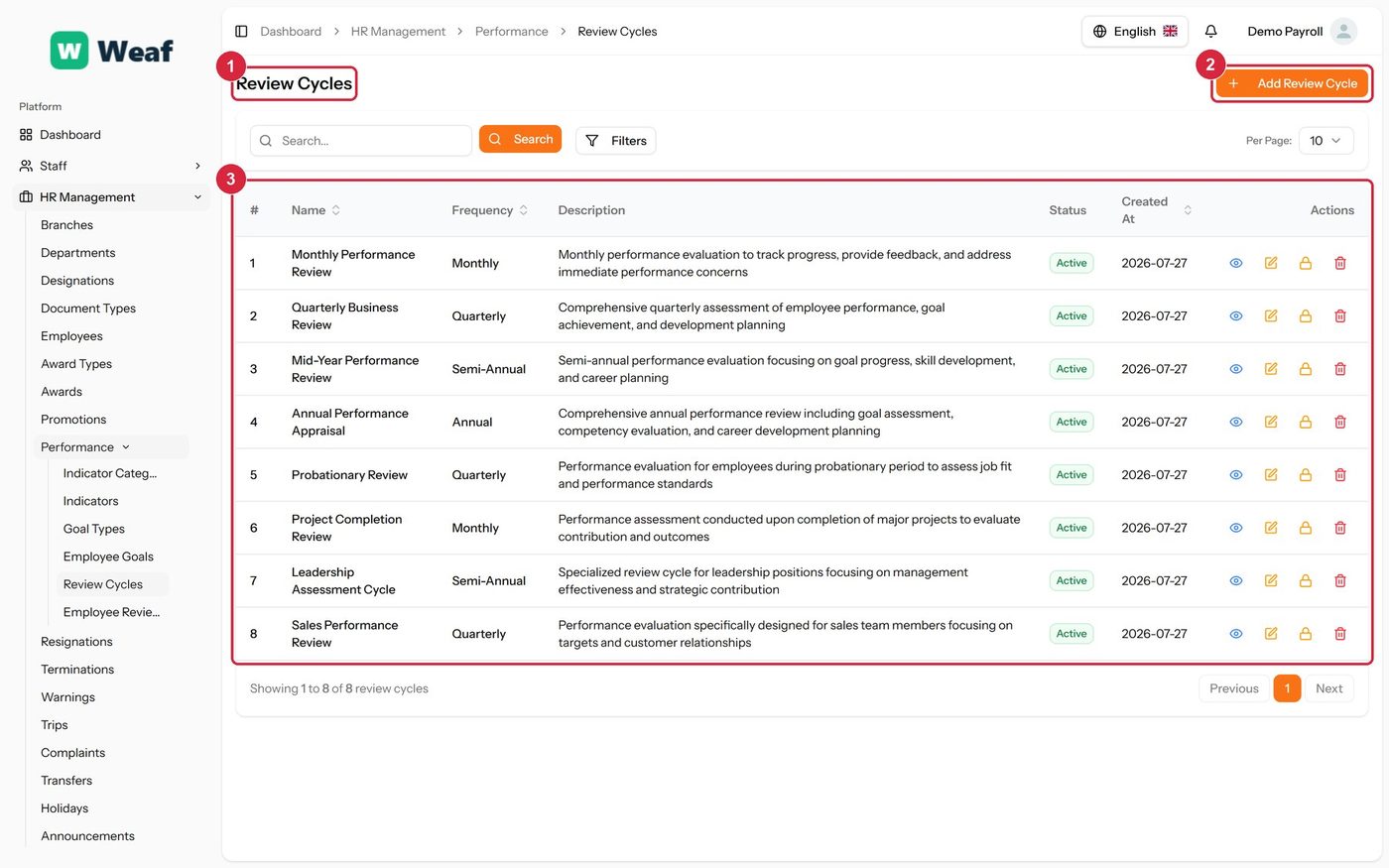
The Review Cycles page
  • 1 page title
  • 2 primary action
  • 3 records table
Columns
  • #
  • Name
  • Frequency
  • Description
  • Status
  • Created At
  • Actions
Actions on this page
  • Add Review Cycle
  1. Choose Add Review Cycle at the top right. The form opens in a panel.
  2. Complete the required fields: Review Cycle Name.
  3. Fill in anything else that applies: Description.
  4. Make the selections the form asks for: Frequency.
  5. Choose Save. The new record appears in the list.
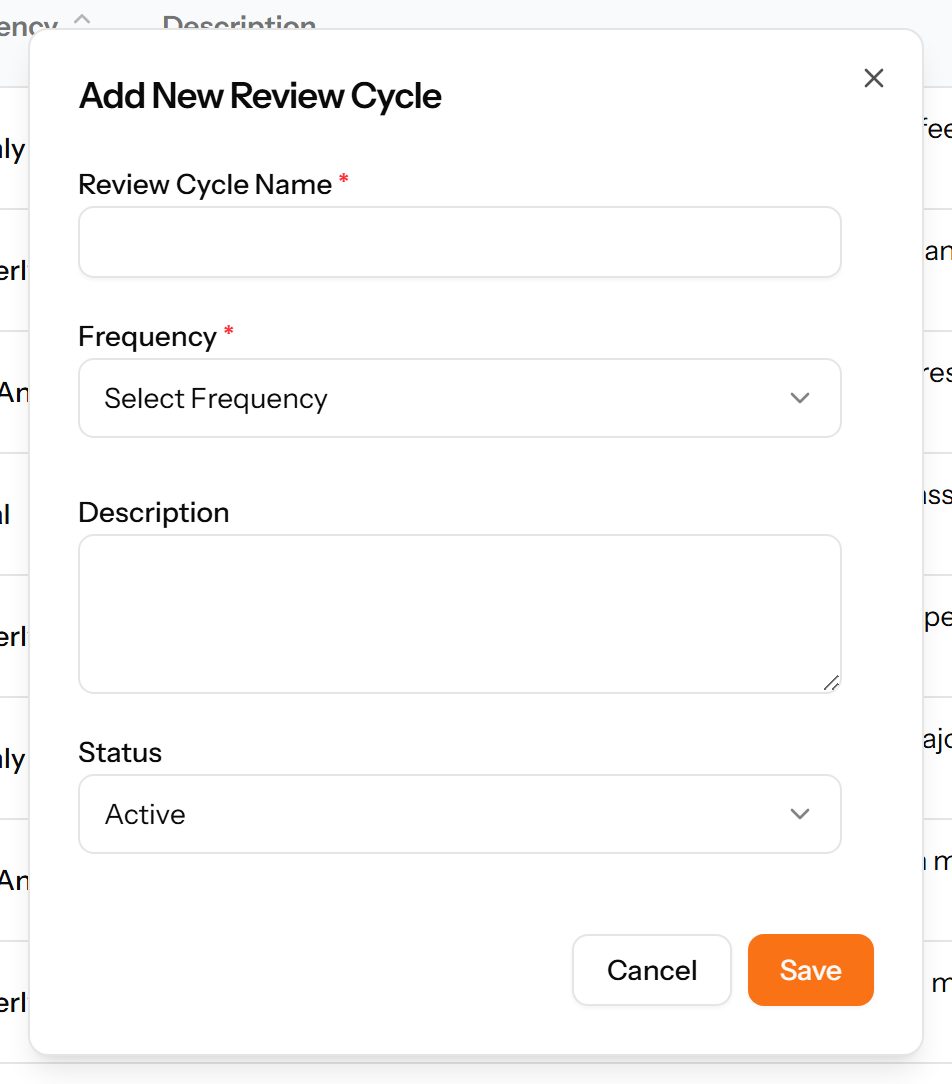
The Add Review Cycle form

Employee Reviews

An individual appraisal: who was reviewed, by whom, in which cycle, and the rating that resulted.
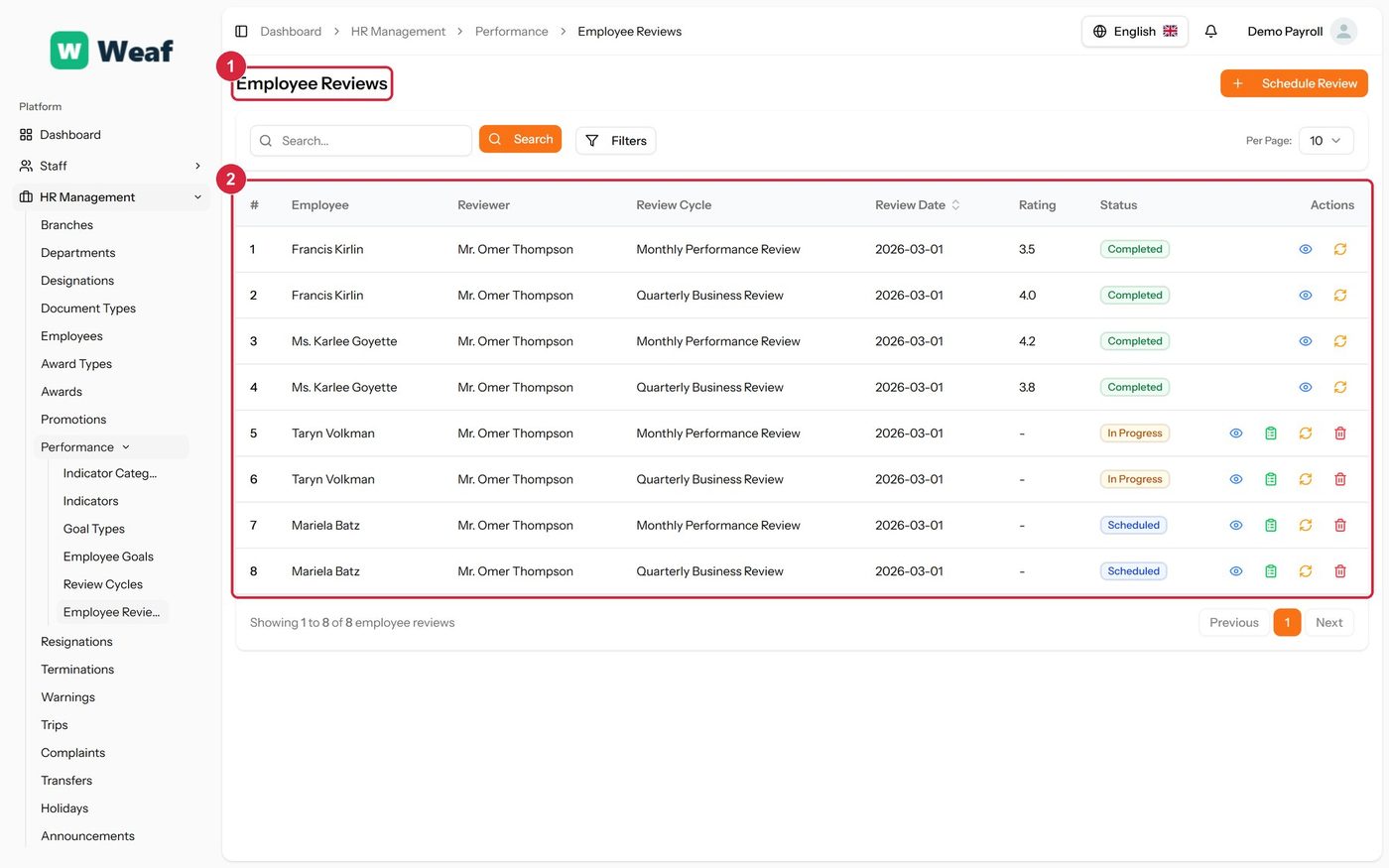
The Employee Reviews page
  • 1 page title
  • 2 records table
Columns
  • #
  • Employee
  • Reviewer
  • Review Cycle
  • Review Date
  • Rating
  • Status
  • Actions
Actions on this page
  • Schedule Review

Common questions about performance

How do I add an indicator category in Weaf HR?

A reference list. Entries created here become the options offered when you create a performance indicator. Setting these up once, before the records that use them, saves correcting the same choice repeatedly later.

  1. Choose Add Category at the top right. The form opens in a panel.
  2. Complete the required fields: Category Name.
  3. Fill in anything else that applies: Description.
  4. Choose Save. The new record appears in the list.
How do I add an indicator in Weaf HR?

The things you measure. Each indicator belongs to a category and carries a measurement unit and a target value, which is what makes a review scoreable rather than a matter of opinion.

  1. Choose Add Indicator at the top right. The form opens in a panel.
  2. Complete the required fields: Indicator Name.
  3. Fill in anything else that applies: Description, Measurement Unit, Target Value.
  4. Make the selections the form asks for: Category.
  5. Choose Save. The new record appears in the list.
How do I add a goal type in Weaf HR?

A reference list. Entries created here become the options offered when you create an employee goal. Setting these up once, before the records that use them, saves correcting the same choice repeatedly later.

  1. Choose Add Goal Type at the top right. The form opens in a panel.
  2. Complete the required fields: Goal Type Name.
  3. Fill in anything else that applies: Description.
  4. Choose Save. The new record appears in the list.
How do I add an employee goal in Weaf HR?

Goals set for a named employee, each with a type, a period and a progress figure that is updated as the goal advances.

  1. Choose Add Goal at the top right. The form opens in a panel.
  2. Complete the required fields: Goal Title, Start Date, End Date.
  3. Fill in anything else that applies: Description, Target, Progress (%).
  4. Make the selections the form asks for: Employee, Goal Type.
  5. Choose Save. The new record appears in the list.
How do I add a review cycle in Weaf HR?

The rhythm of appraisal — quarterly, half-yearly, annual. A cycle is created once and reused for every review that belongs to it.

  1. Choose Add Review Cycle at the top right. The form opens in a panel.
  2. Complete the required fields: Review Cycle Name.
  3. Fill in anything else that applies: Description.
  4. Make the selections the form asks for: Frequency.
  5. Choose Save. The new record appears in the list.

See all questions →