Users, Roles and Access
Before anyone can use the system, they need a way in and a set of permissions.
Before anyone can use the system, they need a way in and a set of permissions. That is what this chapter covers.
Two ideas are easy to confuse and worth separating now. A user is a login — an email address and a password. An employee is an HR record — a person the company employs, with a salary, a department and a leave balance. Creating a user does not create an employee, and creating an employee does not automatically give that person a way to sign in.
Users
The people who can sign in. A user is a login; an employee is an HR record. They are related but separate — a cleaner with no computer access is an employee without a user, and an external auditor might be a user without being an employee.
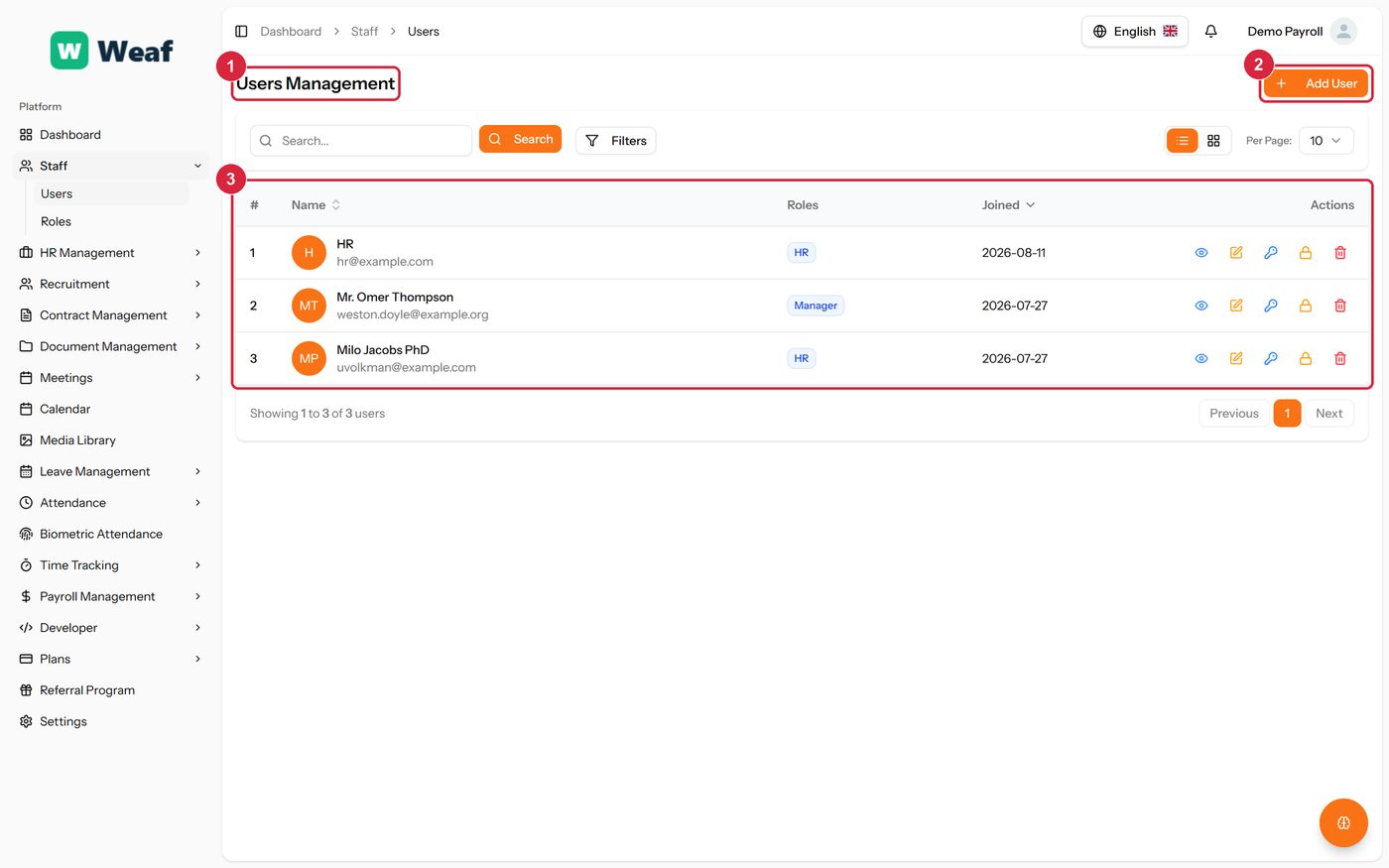
- 1 page title
- 2 primary action
- 3 records table
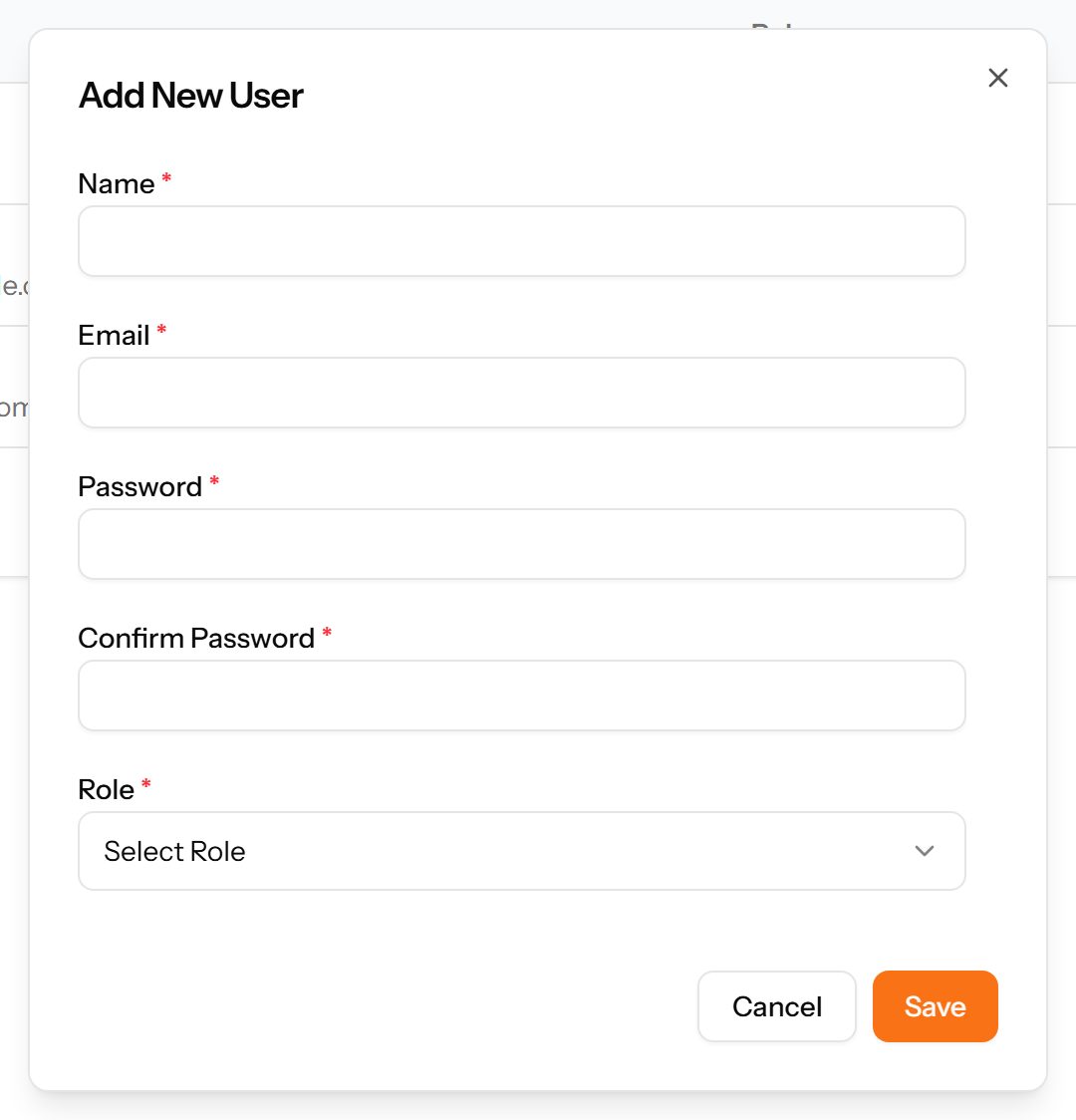
- Choose Add User at the top right. The form opens in a panel.
- Complete the required fields: Name, Email, Password, Confirm Password.
- Make the selections the form asks for: Role.
- Choose Save. The new record appears in the list.
| Note: Give each person their own login. Shared logins make every record that follows ambiguous — you can no longer tell who approved a leave request or changed a salary. |
|---|
Roles
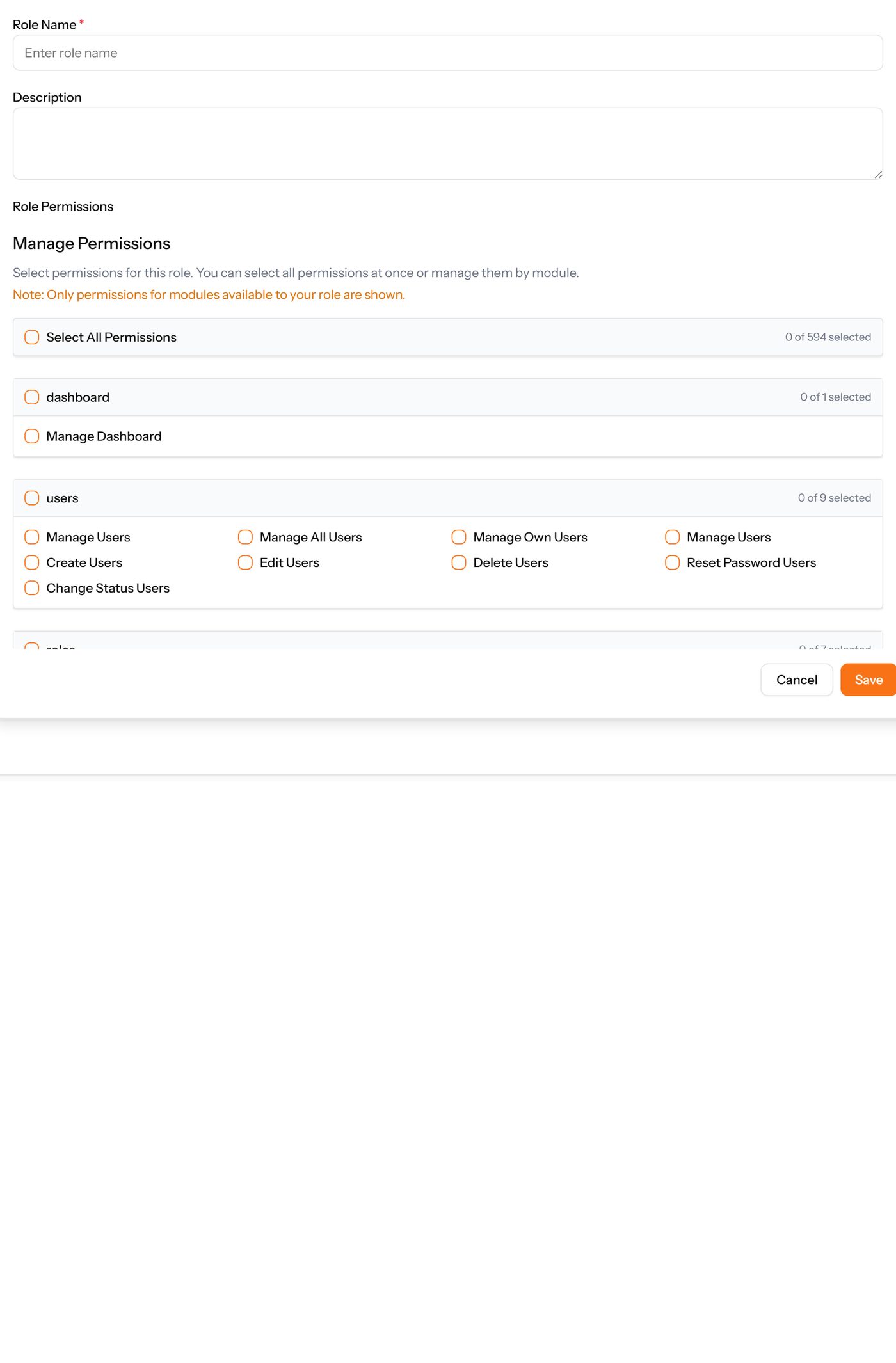
What a user is allowed to do. Permissions are attached to roles, not to people, so granting access means giving someone a role rather than ticking boxes for each individual.
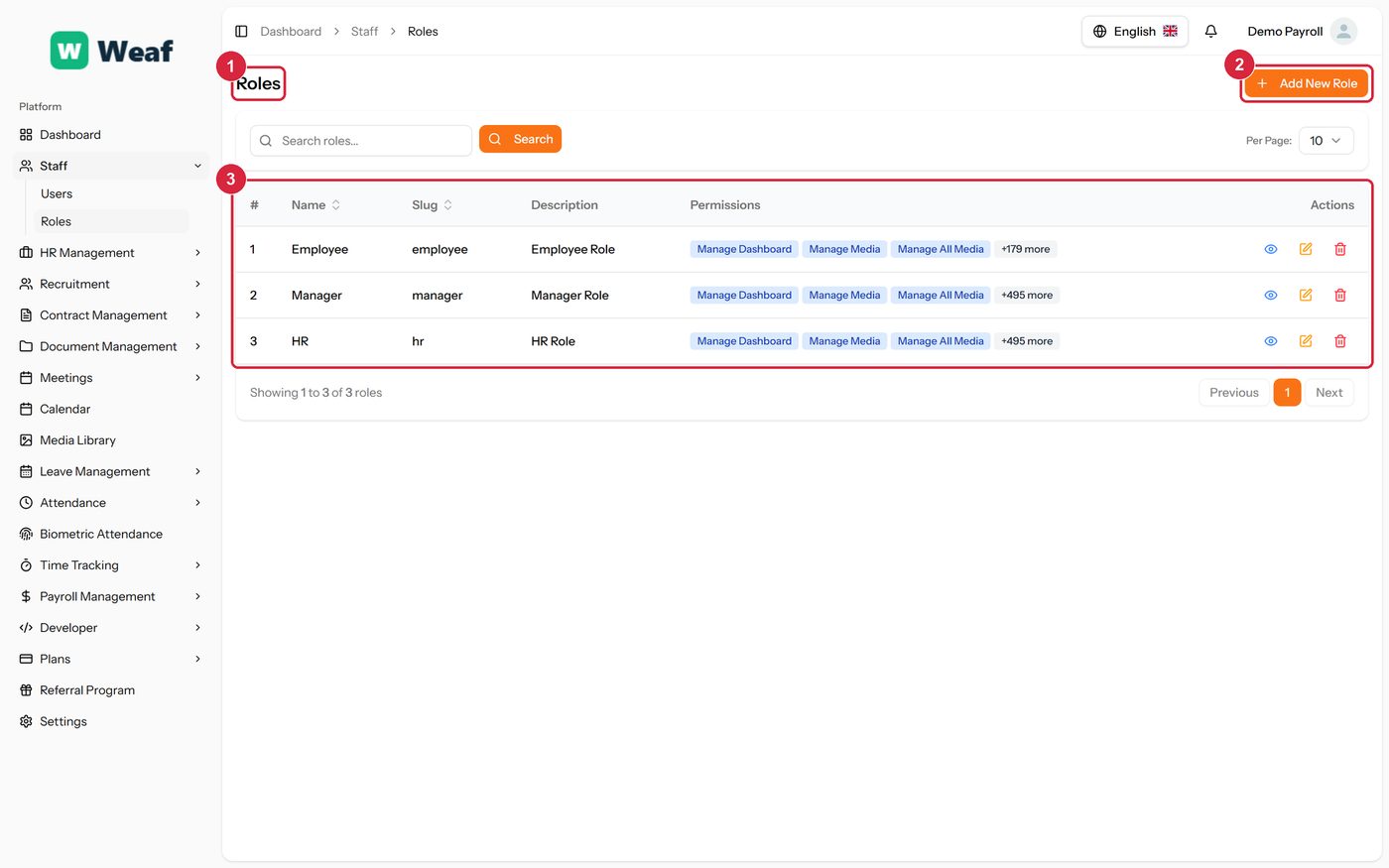
- 1 page title
- 2 primary action
- 3 records table
- Choose Add New Role. The form opens in a panel.
- Name the role after the job it describes — HR Officer, Payroll Clerk — rather than after the person who will hold it.
- Work down the permission list and tick what the role may do. Permissions are grouped by module, and there is one for each action the system can perform.
- Choose Save. The role can now be given to any number of users.