Leave Management
Leave is set up in three layers and then used in one.
Leave is set up in three layers and then used in one. You define the kinds of leave, attach a policy to each that says how it behaves, and from then on staff apply and the balances follow.
The layer most often missed is the policy. A leave type with no active policy cannot be applied for, which is the usual explanation when a leave type does not appear in the application form.
Leave Types
The kinds of leave your company grants — annual, sick, maternity — and the maximum days a year each allows.
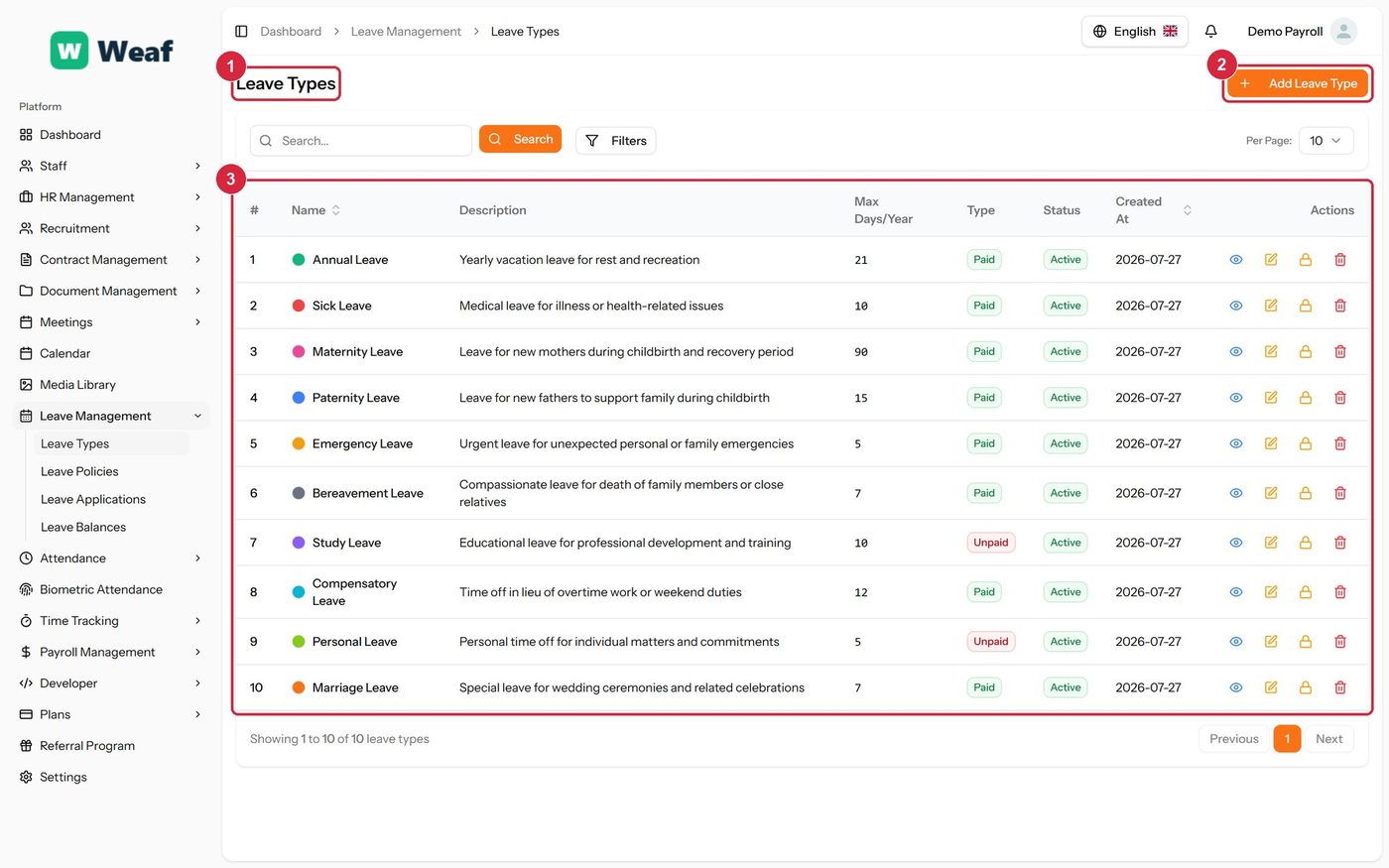
- 1 page title
- 2 primary action
- 3 records table
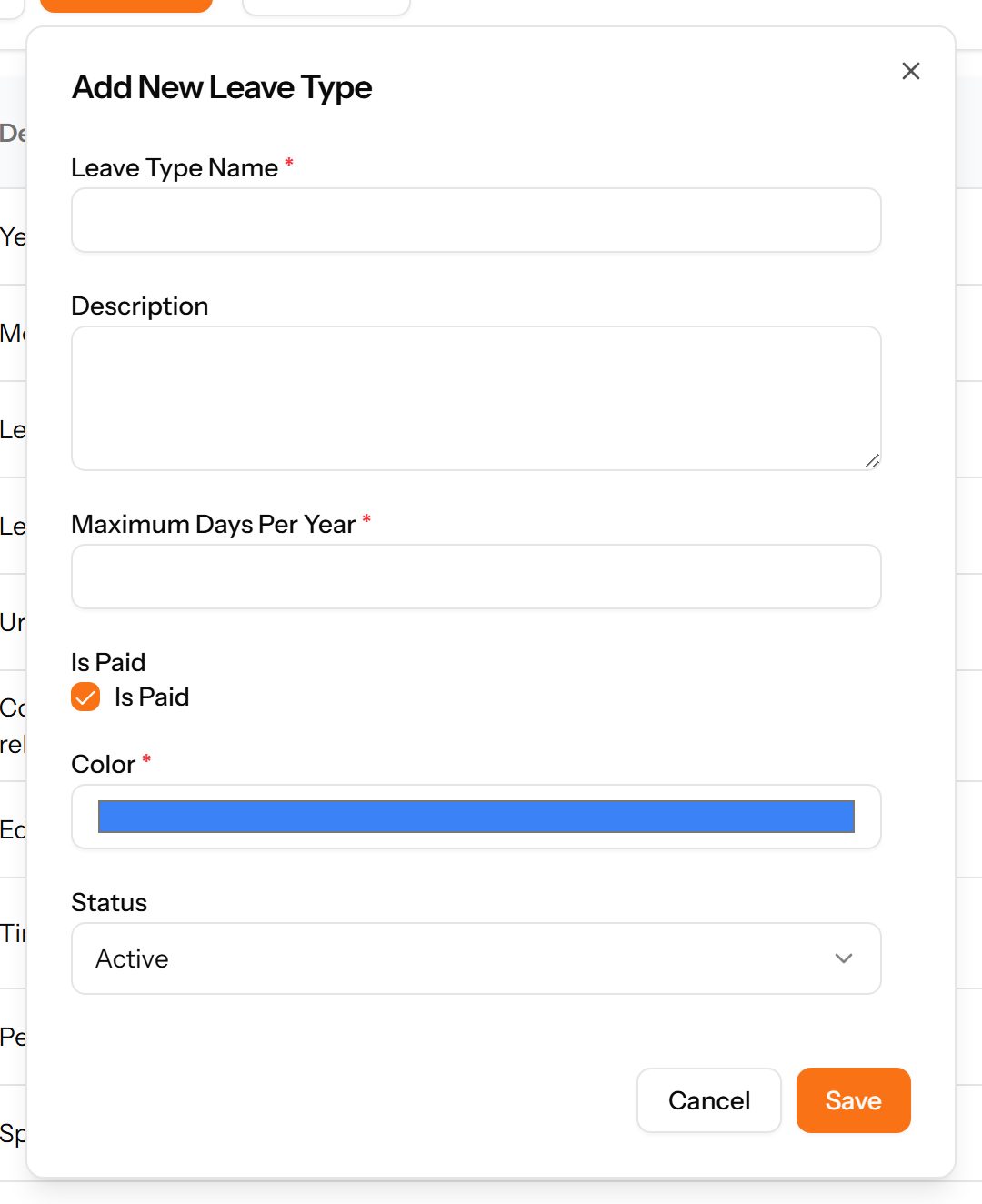
- Choose Add Leave Type at the top right. The form opens in a panel.
- Complete the required fields: Leave Type Name, Maximum Days Per Year, Color.
- Fill in anything else that applies: Description, Is Paid.
- Choose Save. The new record appears in the list.
Leave Policies
The rules applied to a leave type: how entitlement accrues, whether unused days carry forward, and whether applications need approval. A leave type without an active policy cannot be applied for.
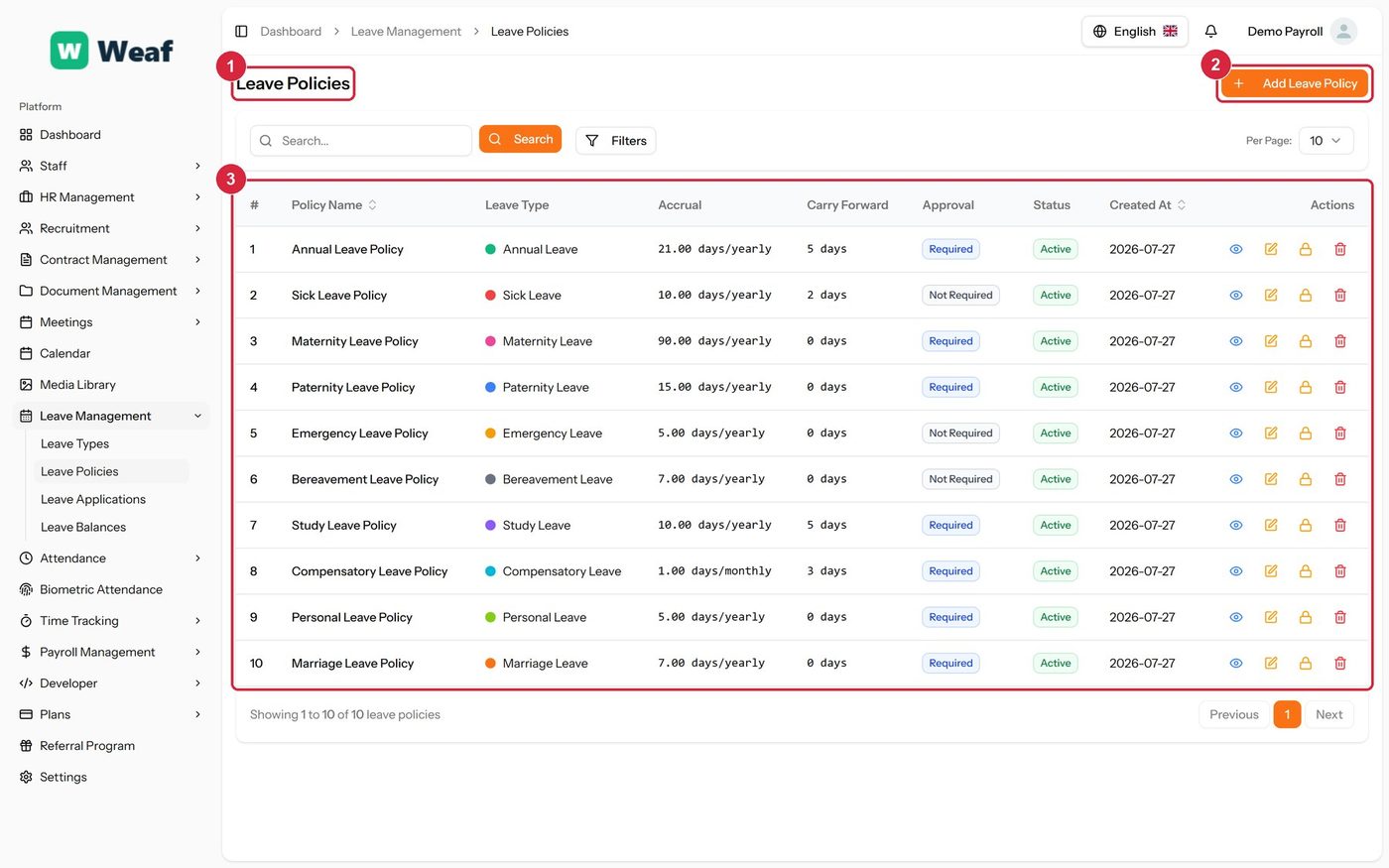
- 1 page title
- 2 primary action
- 3 records table
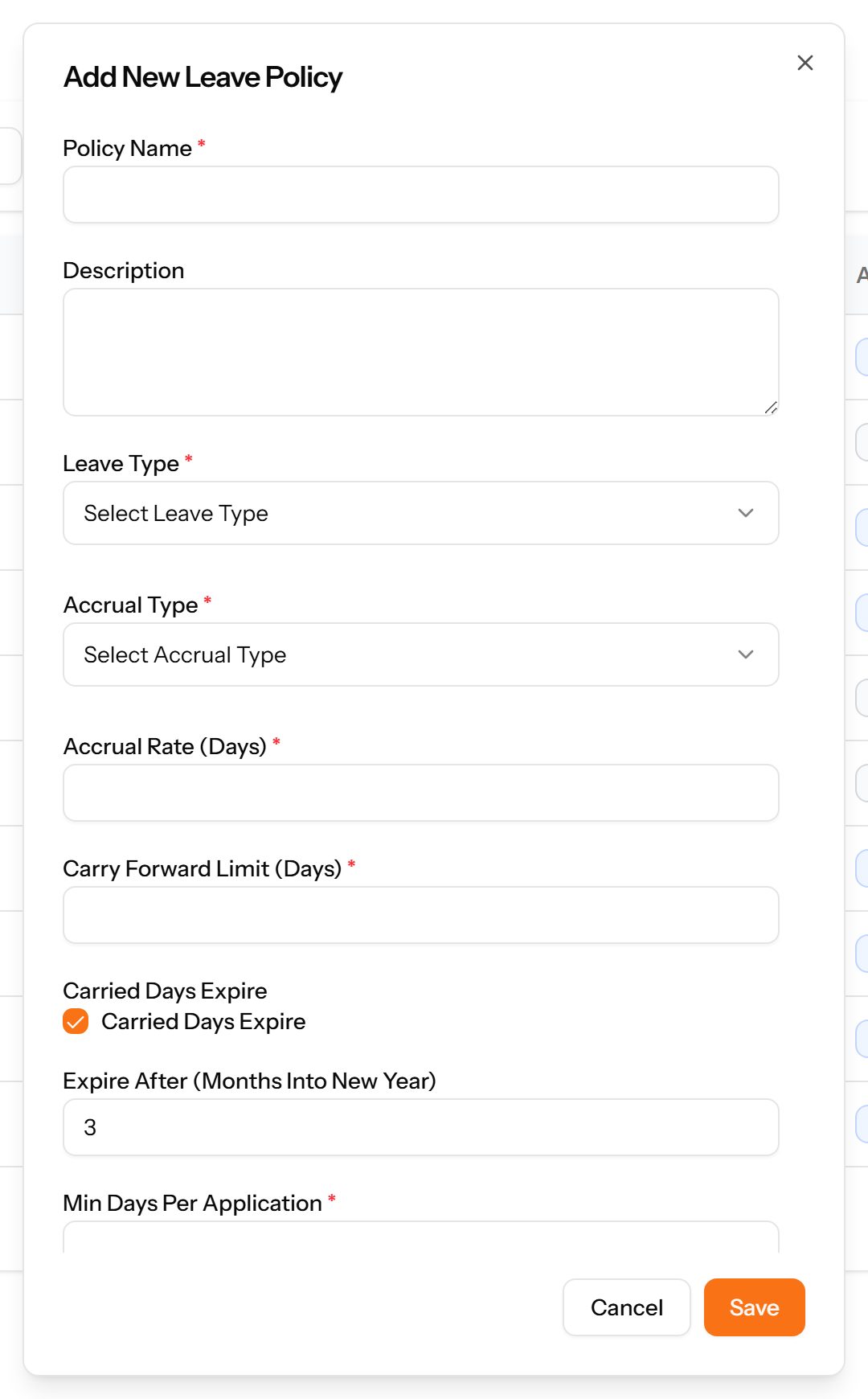
- Choose Add Leave Policy at the top right. The form opens in a panel.
- Complete the required fields: Policy Name, Accrual Rate (Days), Carry Forward Limit (Days), Min Days Per Application, Max Days Per Application.
- Fill in anything else that applies: Description, Carried Days Expire, Expire After (Months Into New Year), Requires Approval.
- Make the selections the form asks for: Leave Type, Accrual Type.
- Choose Save. The new record appears in the list.
| Note: A leave type with no active policy cannot be applied for. If a type is missing from the leave application form, this is almost always why. |
|---|
Leave Applications
Requests to take leave, with their dates, the number of days and their approval status. This is the page most staff interact with.
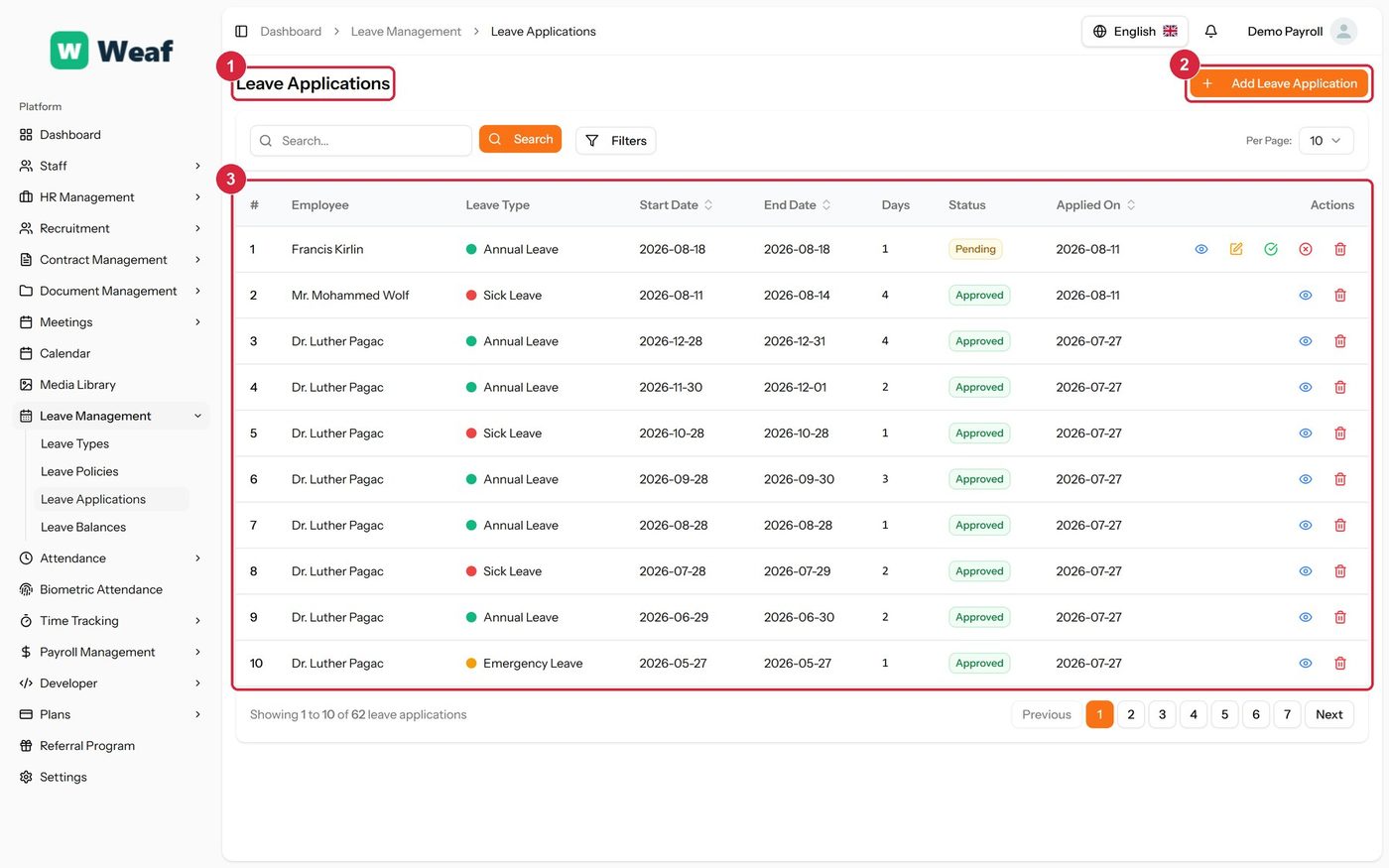
- 1 page title
- 2 primary action
- 3 records table
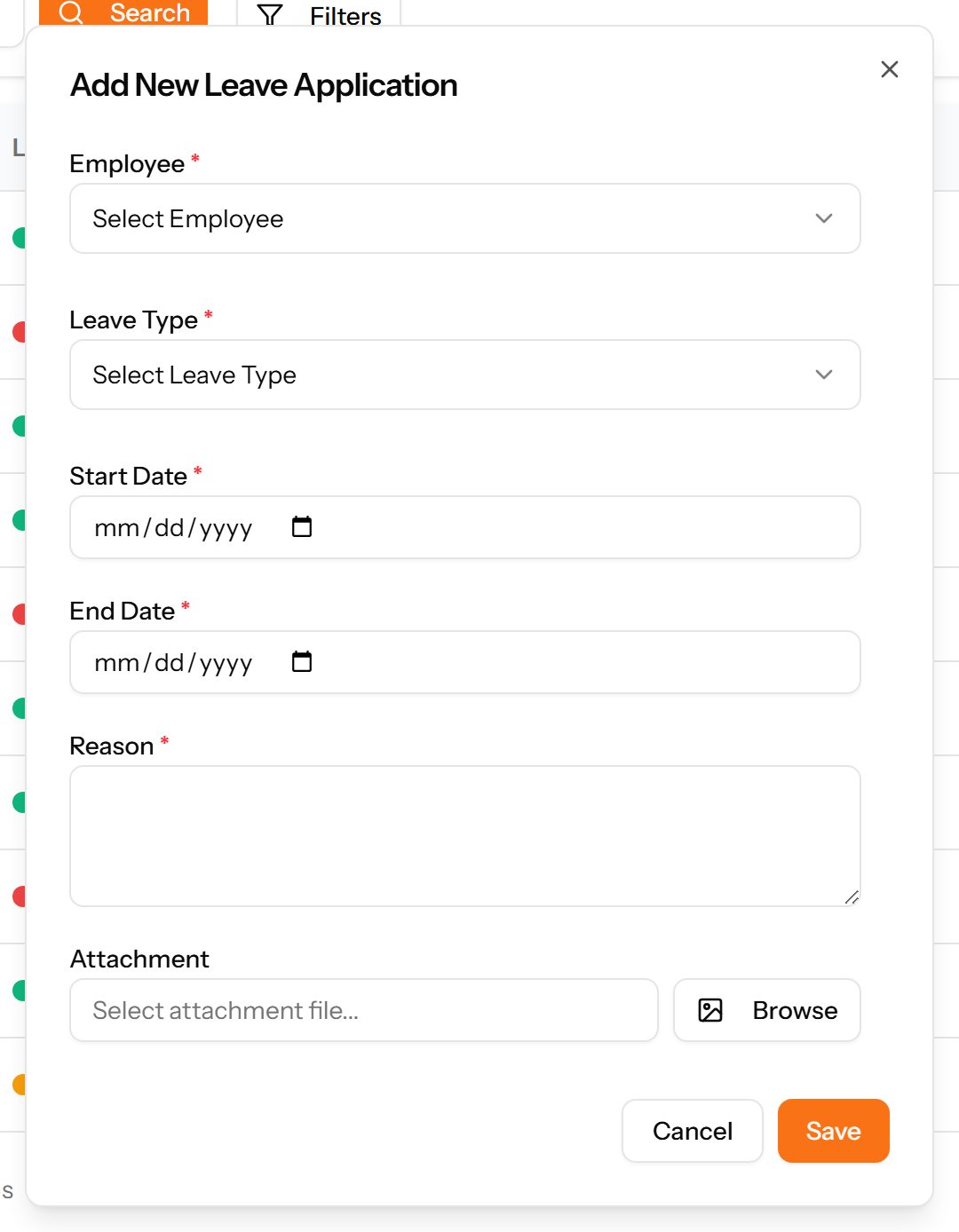
- Choose Add Leave Application at the top right. The form opens in a panel.
- Complete the required fields: Start Date, End Date, Reason.
- Fill in anything else that applies: Select attachment file....
- Make the selections the form asks for: Employee, Leave Type.
- Choose Save. The new record appears in the list.
Leave Balances
What each employee has been allocated, used and has left, by leave type and year.
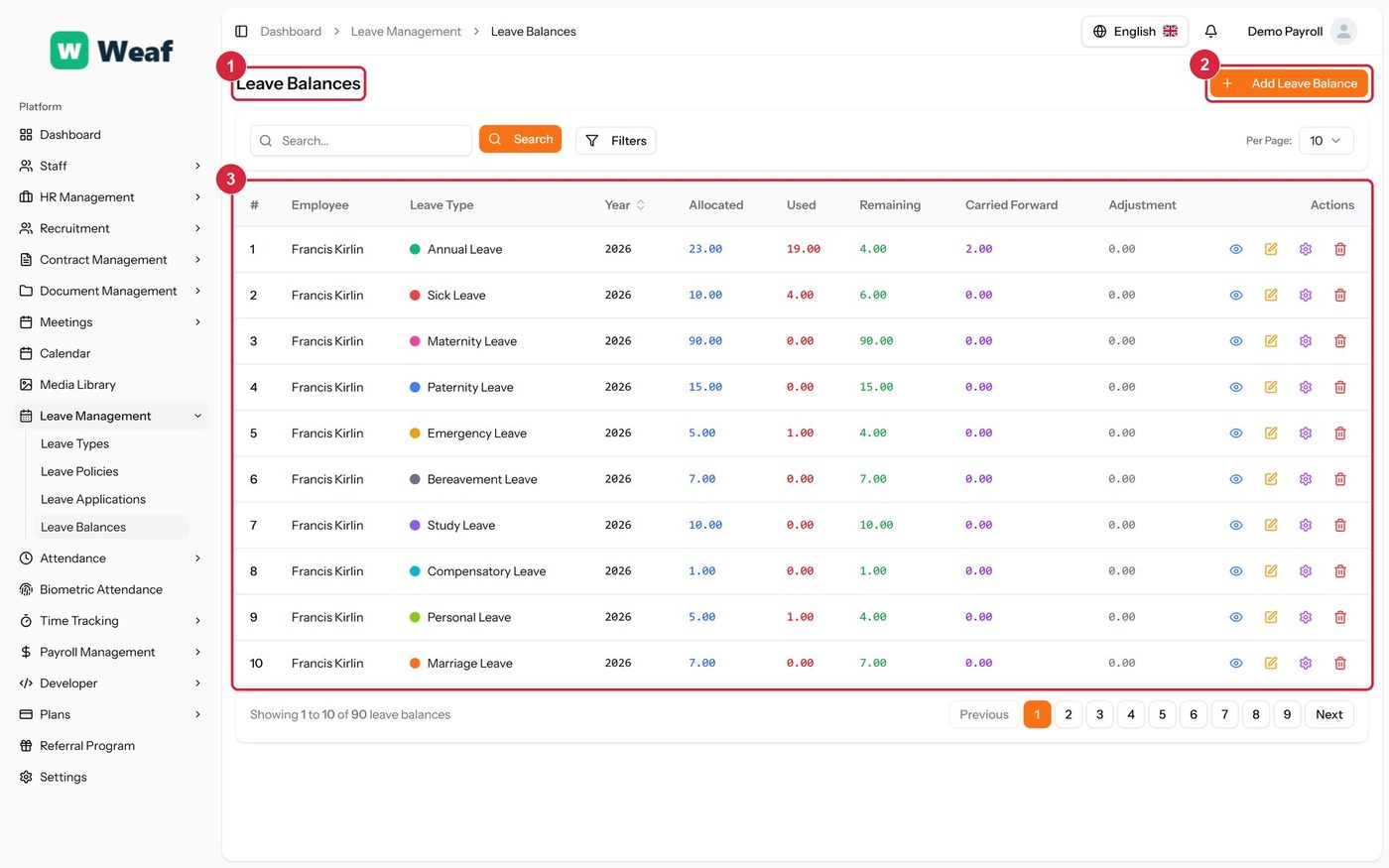
- 1 page title
- 2 primary action
- 3 records table
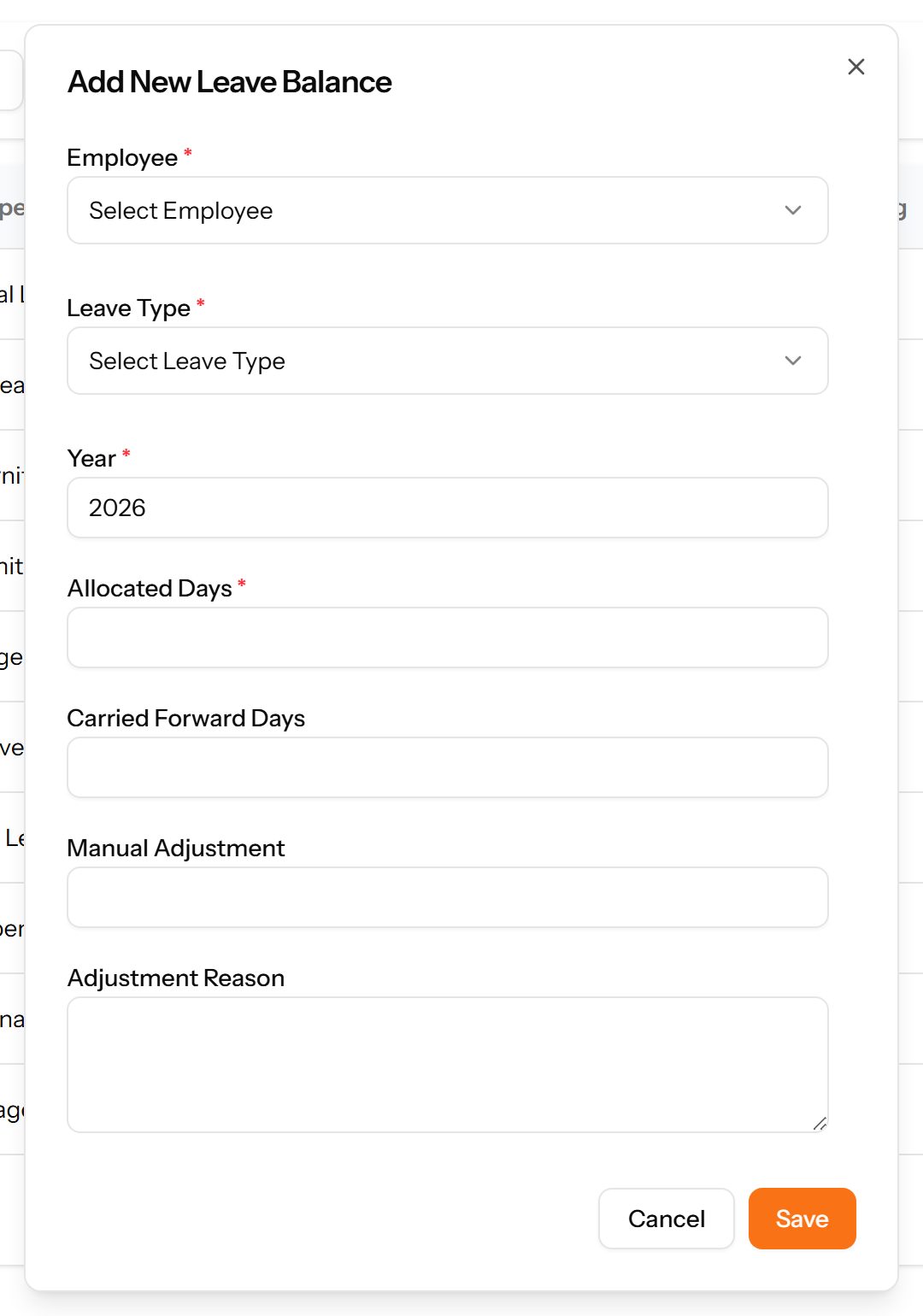
- Choose Add Leave Balance at the top right. The form opens in a panel.
- Complete the required fields: Year, Allocated Days.
- Fill in anything else that applies: Carried Forward Days, Manual Adjustment, Adjustment Reason.
- Make the selections the form asks for: Employee, Leave Type.
- Choose Save. The new record appears in the list.
| Note: Balances follow from the policy and from approved applications. They are not edited directly, which is what keeps them reconcilable. |
|---|